Now available on the iTunes App Store
Now available on the iTunes App Store
iJammer is a Jammer-style CoreMIDI control surface for the iPad.
The scale patterns are very intuitive, and the built-in note guide makes it easy to learn to play!
The layout is based on the "Hayden-Wicki" system, with independent mirror-image keyboards for the left and right hands.
There is a very good background article about Jammer keyboards on Wikipedia:
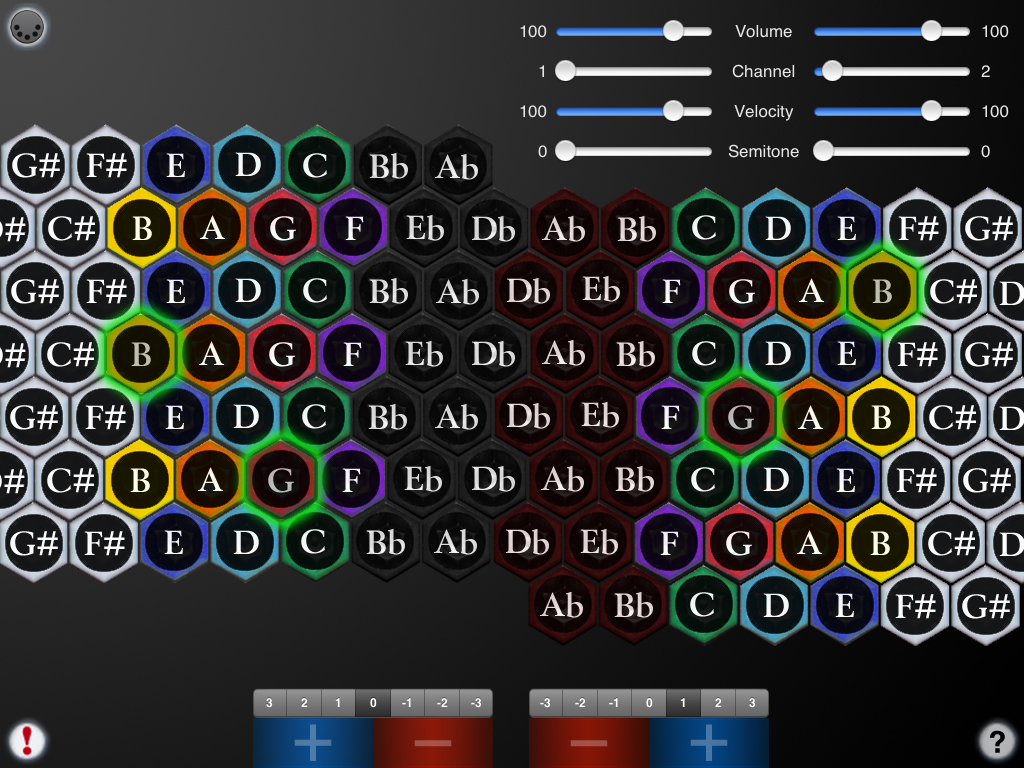
To play, simply touch the buttons. Buttons light up when playing
Multiple buttons may be touched at the same time to play chords.
You can slide between the buttons.
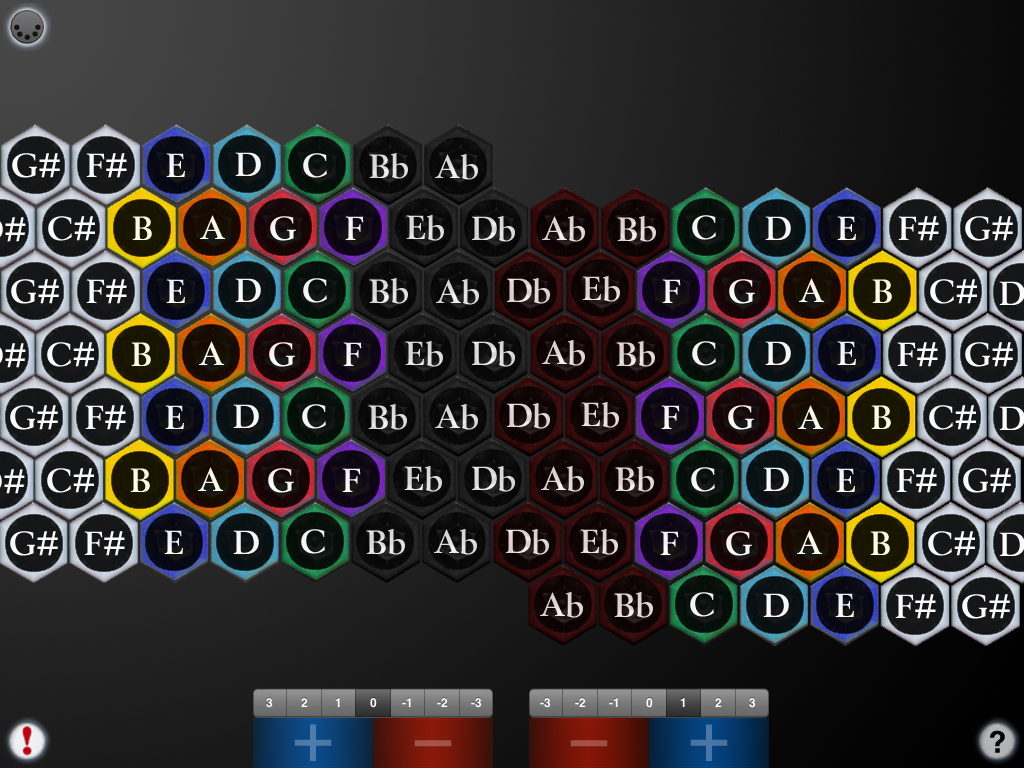
Touch the '?' icon to show the note names for each button.
Touch the MIDI connector icon to show the MIDI controls.
iJammer supports two independent MIDI channels and has 104 buttons (52 for each hand) with a 9-octave range (via transposition).
iJammer doesn't produce any sound on it own, it is designed for playing hardware or software VST-style MIDI synthesizers via a CoreMIDI interface connected to the iPad dock connector or virtual MIDI instruments like IK Multimedia SampleTank® for iOS running on your iPad.
Demonstration video
Main Screen:
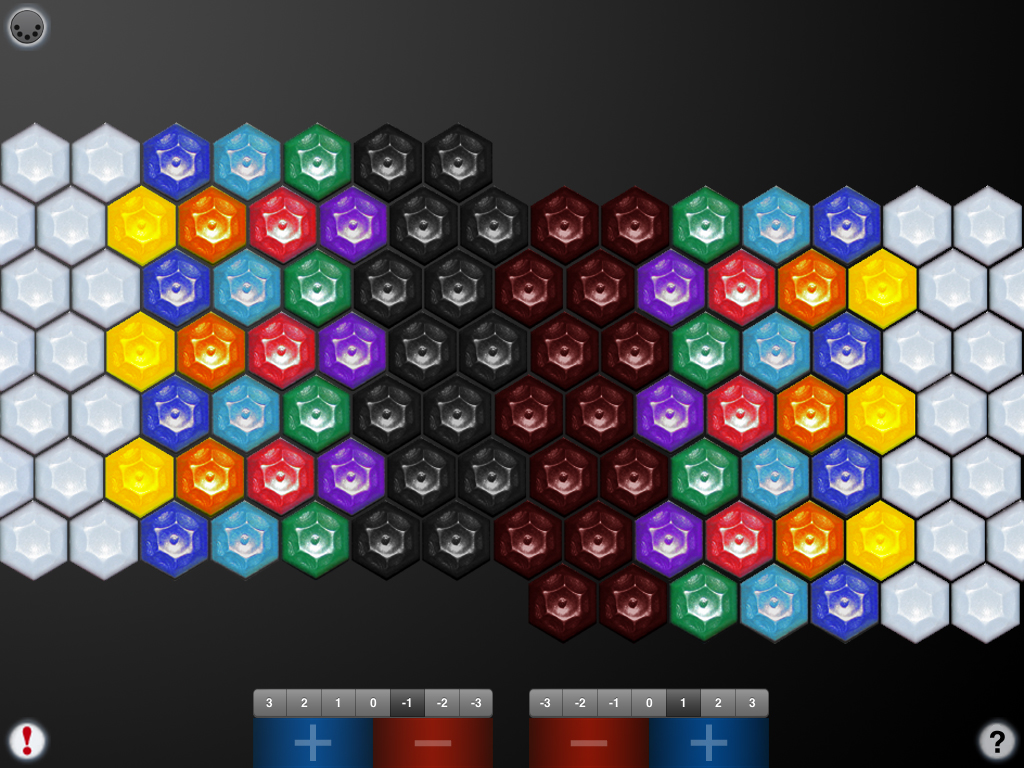
To play, just touch the buttons. Multiple buttons may be touched at the same time to create chords.
You can slide between the buttons.
The two sides are mirror images of each other.
Both sides may be transposed independently.
Touch the red or blue bars at the bottom of either side to transpose down or up one octave for that side.
The display above the bars shows the current octave for each side.
Touch the "?" icon at the lower right to display the note names:
Touch the MIDI connector icon at the upper left to display the MIDI controls:
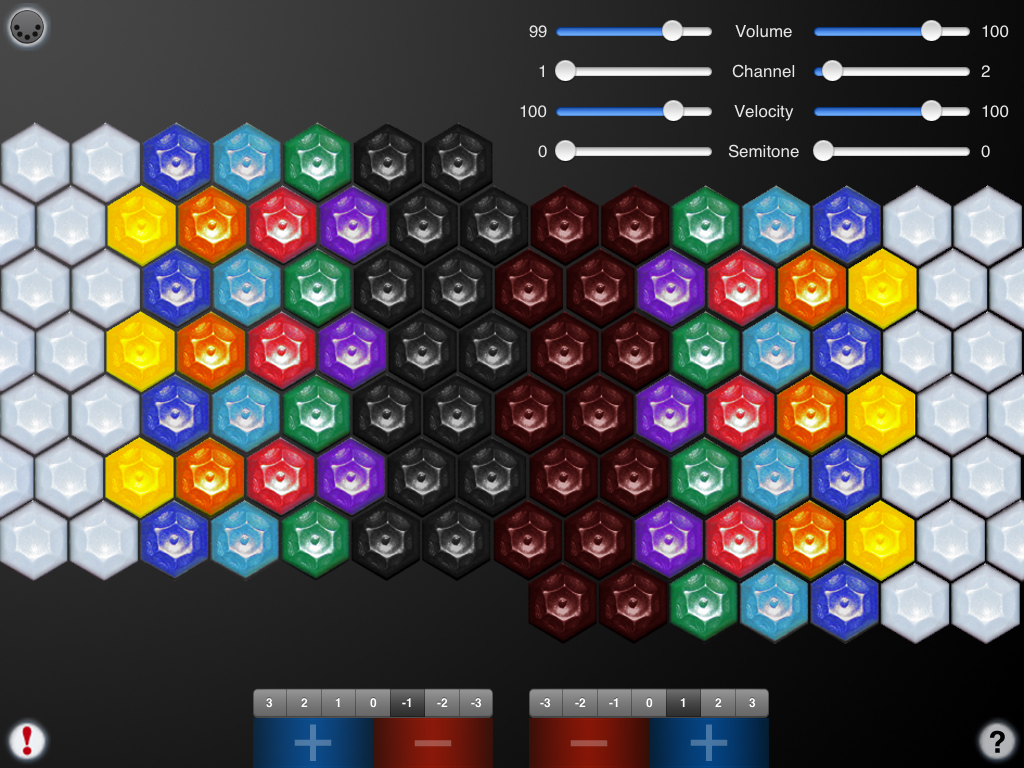
You may select the volume, MIDI channel, attack velocity, and semitone transposition (0-11) for the two sides independently.
All MIDI settings are saved when iJammer quits and restored the next time it is run.
Touch the '!' icon at the lower left to quiet any "stuck" notes if they occur.
Here's a screenshot with the note names enabled and MIDI controls active while playing:
Rotate the iPad to portrait orientation to display the help screen:
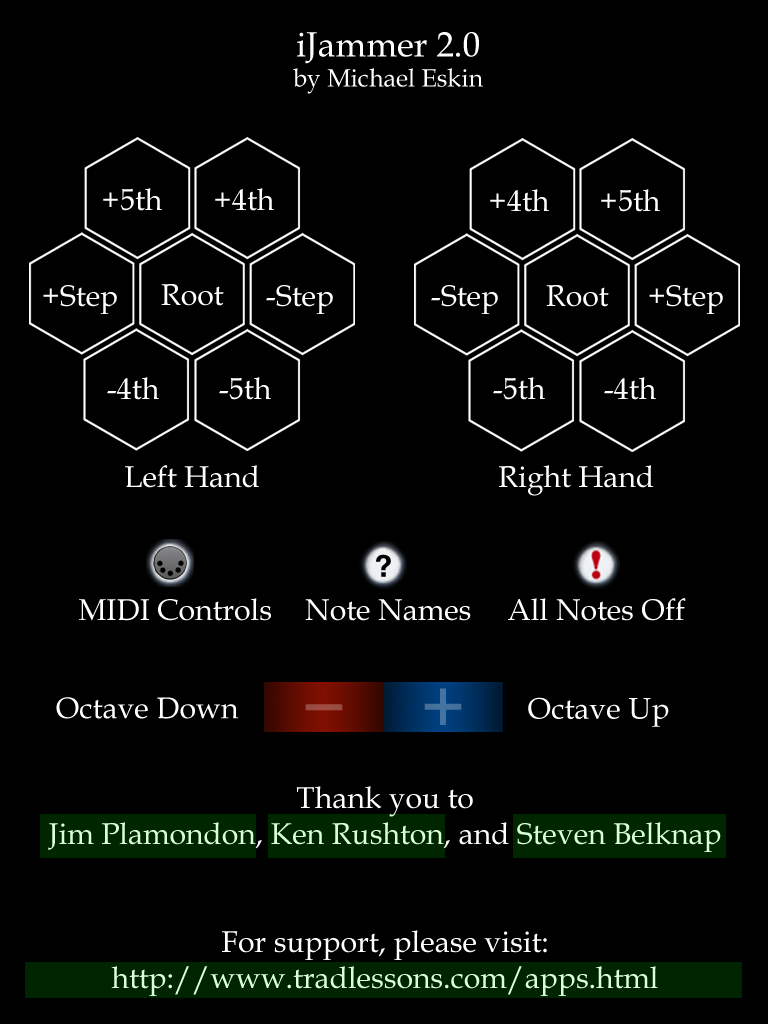
On the iPad, touch any of the green highlighted links to go directly to webpages with additional information about iJammer and Jammer-style controllers.
FAQ:
Q: I'm running a CoreMIDI virtual synth on my device, but I don't hear any sound when using your CoreMIDI control surfaces.
A: Please check that "Background Audio" is enabled on the virtual synth app you are running.
Also check that the virtual synth app has an active patch on the same MIDI channel(s) you are sending from the control surface app.
Q: Which other CoreMIDI synthesizer apps can be controlled by your control surface apps?
A: The iOS Musician website is maintaining a comprehensive list of apps that support virtual MIDI ports.
The majority of my testing has been with IK Multimedia SampleTank®.
Q: Can I play along with music on my iPad?
A: Yes, you can play along with tunes in your iPad's music library by starting a track using the iPad iPod app, then launching iJammer. While the music is playing you can double click the home button to bring up the iPod music controls.
Using the iPad's Settings app, under General/Home, enable the "iPod Controls" setting to allow you to bring up the iPod music control panel by double-clicking the home button while the app is running.
Q: Where can I learn more about how to play the instrument?
A: Jim Plamondon and Ken Rushton's websites are the definitive starting point for all things having to do with Jammer-style controllers:
Ken Rushton - Music Science Guy
There is also a very good background article on Wikipedia:
Future Plans:
I am very interested in any suggestions for features or improvements to iJammer for future updates, please drop me an email anytime with your ideas!
More Apps to Enjoy:
A huge thank you to Jim Plamondon, Steve Belknap, and Ken Rushton for their inspiration and guidance during the development of iJammer.
For more information, please contact Michael Eskin or visit the AppCordions website: